

Tool Store
What the agent is allowed to do during a run, enable, disable, and configure the toolbox per project.
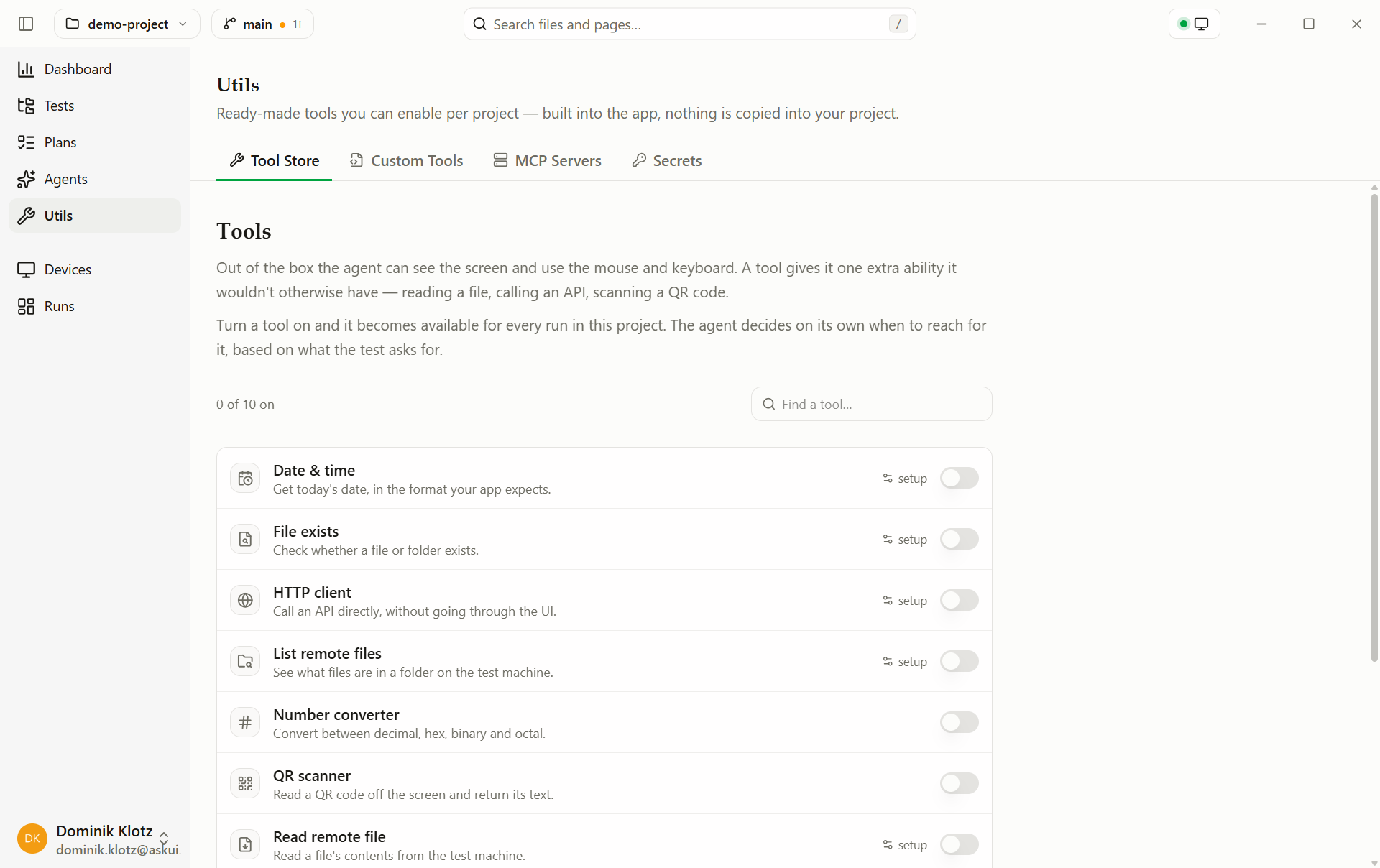
Everything the agent does happens through a tool, mouse, screenshot, file access, database query. The toolbox is the boundary of what a test can possibly do. Manage it under Extending → Tool Store.
| Tier | Behavior |
|---|---|
| Device tools | Screenshot, click, type, injected automatically for the run's device kind. Always on, not listed |
| Default tools | Enabled unless you switch them off |
| Optional tools | Disabled until you enable them, typically tools with reach beyond the UI under test, like a shell or database access |
| Custom tools | Your own C# tools from utils/custom_tools/, always part of the run's toolbox once the file exists |
| MCP tools | Tools of the MCP servers registered in utils/mcp.json, connected at run start |
Some tools take configuration when added, a connection string, a base URL.
${VAR} values resolve at run start, from the project's secrets first and the environment second; credentials belong
in named secrets.
Choices are saved to utils/tools.json, the whole team runs with the same
toolbox. An untouched tool follows its tier default.
The tools in the store
All store tools are currently Optional, off until you enable them. Grouped by where they reach; required parameters in bold. Every tool heading is a link, copy it to point a colleague at exactly one tool.
Seeing the screen better
Screen zoom
A zoomed-in crop of a screen region (computer device).
- Use it when: the agent keeps missing small targets, tiny checkboxes, dense tables. The last rung of the misclick ladder.
4. Use the zoom tool to click the "Accept AGB" checkbox.QR scanner
Scan and decode a QR code from the screen or an image (computer, web, Android).
- Use it when: the application generates a QR code, invoice, ticket, and the test must verify it encodes the right content.
6. Scan the QR code on the invoice — it encodes the order number from step 2.Test data
Date & time
The current date/time; the agent can ask with a day offset (1 = tomorrow).
- Use it when: a step needs a real date, "enter a delivery date three days from today", or verifies a timestamp the UI shows.
- Parameters: Format, Timezone.
3. Enter the date three days from today into "Delivery date".Number converter
Convert between decimal, hex, binary, octal.
- Use it when: the application shows values in one base and the test data is in another, hex device IDs, register values.
5. Verify the "Device ID" field shows the hex value of 305419896.Beyond the UI: on this machine
HTTP client
HTTP requests (GET, POST, …) against APIs and webhooks; header values
support ${VAR} secrets.
- Use it when: cross-checking the UI against the backend, after checkout, verify via the API that the order really exists, or triggering a webhook as test setup.
- Parameters: Allowed hosts (empty = any).
8. Perform a GET request to https://api.example.com/orders — the new order is in the response.SQL database
Run allowlisted SQL statements via any ODBC driver; raw SQL is a separate, dangerous opt-in.
- Use it when: verifying the record actually landed in the database, or seeding and cleaning test data in setup and teardown.
- Parameters: ODBC driver, Server, Database, credentials,
Allowed statements (
name: SQLper line, the agent runs statements by these names), Allow raw SQL, full list in the add dialog.
9. Run the "open_orders" SQL statement — the new order appears with status NEW.Shell script
Run a pre-configured shell/batch script; the agent invokes it by the name you give it.
- Use it when: a script already solves it, restarting a scanner service as a recovery, resetting the test database.
- Parameters: Tool name, Script path, Description.
- If the scanner stops responding, run the restart_scanner tool and repeat the step.File exists
Check whether a file or directory exists on this machine.
- Use it when: the test ends in an export or download, verify the file actually appeared.
- Parameters: Base directory.
7. Check that the file "order_export.pdf" exists in C:/exports.Signing in
Read MFA Code
The current six-digit code from an authenticator you added under Secrets, so a login protected by two-factor authentication can go through unattended.
Adding your first authenticator switches this tool on for you, because an enrolment nobody can read is of no use. If you switch it off afterwards it stays off, and the Tool Store shows a note under the row, so a test that fails at the code screen does not send you looking in the wrong place.
- Use it when: the application asks for a code after the password.
- Parameters: none — the authenticators live under Secrets, and a test names the one it wants.
3. Type the password and continue.
4. Read the MFA code for "admin" and enter it.
It cannot answer a push notification or a hardware security key, and a code that arrives by e-mail is the Read Email tool's job instead.
Not yet usable with caching
A test that reads an MFA code cannot be replayed from a cached trajectory today. The replay types the code that was recorded, which expired long before the replay ran. Leave caching off for projects whose tests sign in through two-factor authentication.
Files on the controlled machine
For runs where the application under test is on another machine (computer device) and writes files there.
List remote files
List files in a directory on the machine being controlled.
- Use it when: checking the export folder on the test machine after the run's actions.
- Parameters: Base directory, Allowed file extensions.
5. List the files in the export folder — a new PDF was created.Read remote file
Read a file's text content from the controlled machine.
- Use it when: the content matters, not just the existence, verify a log line or an exported CSV on the test machine.
- Parameters: Base directory.
6. Read the exported CSV — it contains the order number from step 3.Using a tool in a test
Once enabled, a tool is available wherever steps live, test cases, setup and teardown, and procedure bodies. Describe the action, or name the tool explicitly when two could match:
6. Perform an HTTP GET request to `https://example.com` — the response
   status is 200.
7. Use the `sql_database` tool to run the statement `test_data`.
The full step vocabulary: Step constructs → Tool invocations.
A step that names a tool the run doesn't have is flagged by the agent: WARN when it accomplished the step reliably another way, BROKEN, with a hint to enable the tool, when the step depends on it.
Need more? Custom tools for anything you can write in C#; MCP servers for existing tool servers.