

Devices
Device profiles describe the machines and apps your tests run on. Create them once, connect, and target them from any test.
Tests run on devices: this machine, a browser, a phone. A device profile describes how to reach one. Connected profiles appear in every test's Run on picker, they are your test environments.
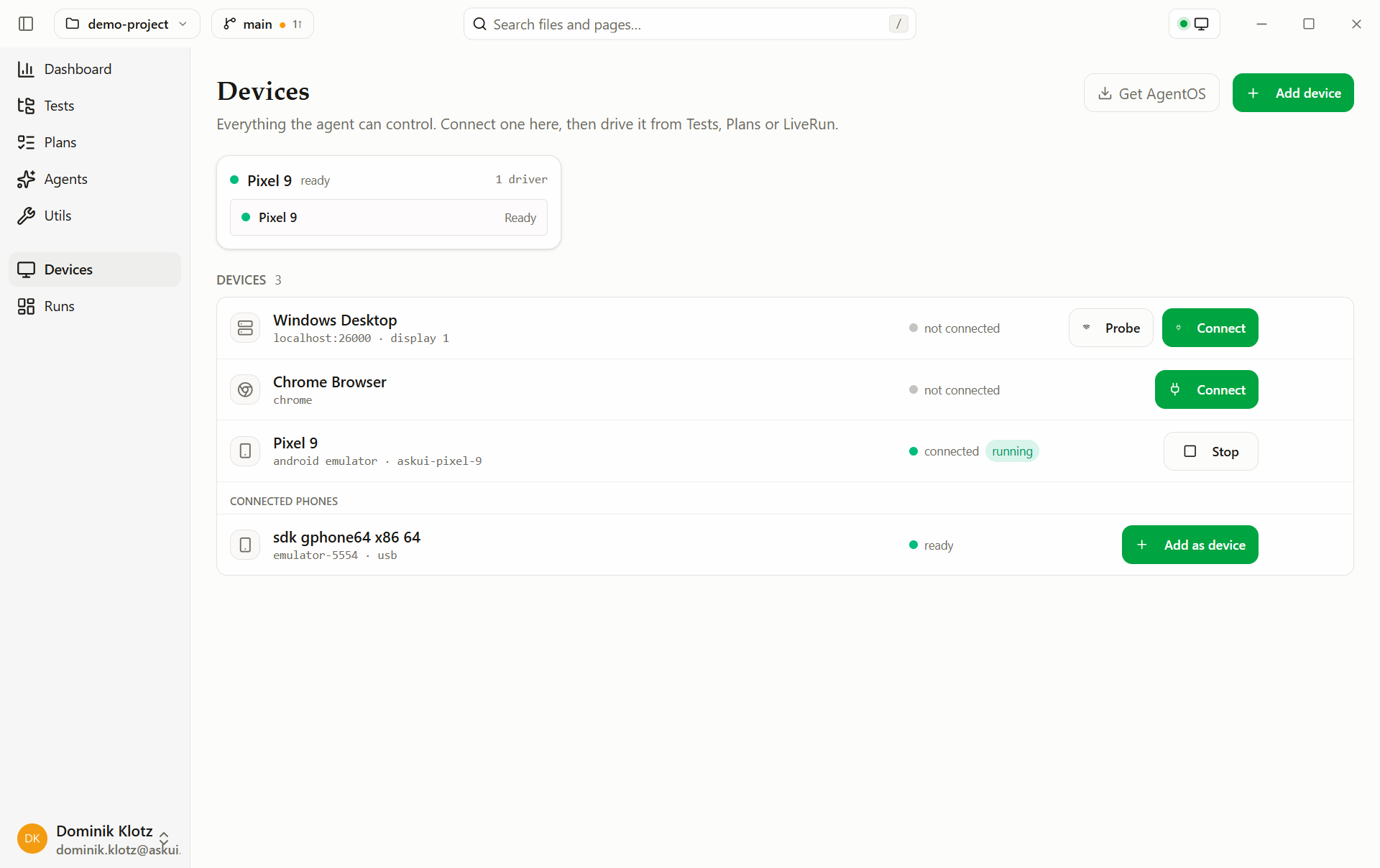
| On the page | Meaning |
|---|---|
| Windows Desktop | This machine's desktop via the AskUI Agent OS, native applications |
| Chrome Browser | A local Chrome window the app launches itself, web tests |
| Pixel 9 | An Android emulator, created and booted by the app |
| Connect / Start | Opens the session. Green dot = ready. Tests only run on connected devices |
| Probe | Checks reachability without connecting |
| Force Restart (next to Retry, Local profile only) | After a failed Connect: stops the standalone AgentOS controller on this PC and starts a fresh one, see Remote computer |
A new project starts with a Local profile (this machine) and, where the machine supports it, a ready-made Android Emulator profile. Deleted defaults stay deleted.
Create a profile
- Click Add device.
- Pick the kind.
- Enter a name and the kind's fields. The optional Prompt field holds what the agent gets told about this device on every run, quirks the screen doesn't show ("always execute on display 1"). A Multi computer or Cross-platform profile passes on each member's prompt as well, under the member's name.
- Click Add device, then Connect the new card.
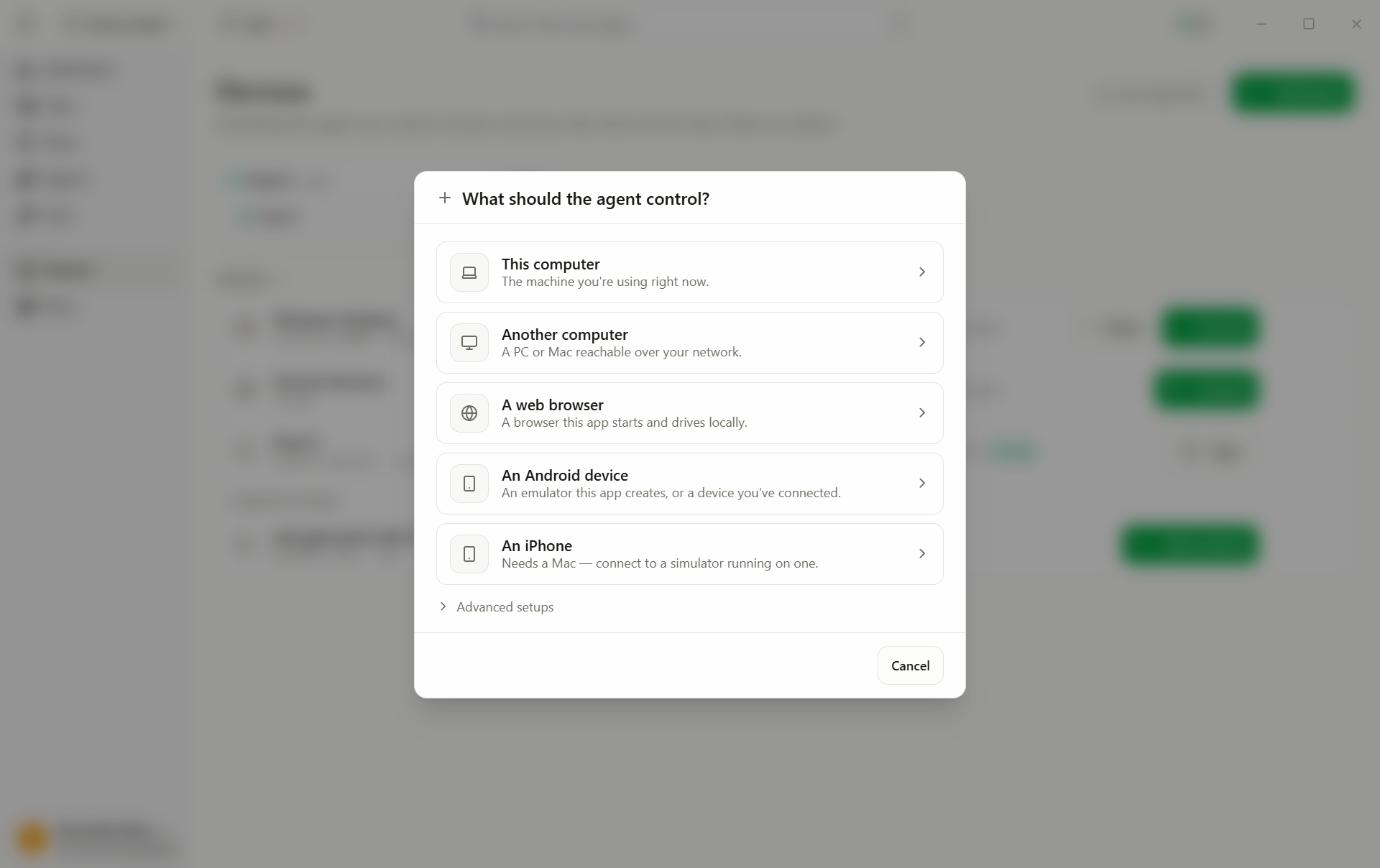
| Kind | Device | Notes |
|---|---|---|
| Remote computer | Any machine running AgentOS, host, port, display | Test on a dedicated machine instead of your own |
| Web browser | Local browser session, Chromium, Firefox, or WebKit | Optional start URL, headless |
| Android emulator | Virtual device on this machine | An Android emulator in the dialog; device type + Android version, created on first Start |
| iOS simulator | Apple simulator | macOS only, greyed out on Windows |
| Multi computer | Several desktops, one agent | The test names the machine per step ("on the server …, on the client …") |
| Cross-platform | Desktop + Android + web in one profile | Connect/status only, runs not supported yet |
| Android phone | A physical device via USB or wireless | An Android device in the dialog lists the phones adb sees, Add as device adds one; also from the Android devices list below |
Each kind has its own page with the exact fields and setup. Missing tooling
(no Android SDK for an emulator, no adb for a phone) shows up while you add
the device and on its profile card as Android tools are not installed on this
computer, with an Install button: one click installs everything missing,
or follow the manual steps with exact commands.
Android devices (discovery)
The Android devices section lists what adb sees: USB-connected phones
(USB debugging enabled) and already-running emulators. Add as profile
turns a discovered device into a regular profile, see
Android phone. For a wireless device, enter
its ip:port and click Connect wireless. Without adb the list stays
empty; the Add-device dialog's An Android device entry says so and offers
Install.
How a test picks its device
The test names its target ("Run this on the Windows Desktop device"); the Run on picker confirms it. Pick a different connected profile to run the same test on another environment.
It uses your mouse and keyboard
A desktop run on this machine is a real user session: the agent moves the pointer, types, and needs the application in the foreground. Don't work on the machine during a run, use a browser, emulator, or remote profile to keep working.
Where profiles live
devices.json in the project, including each profile's Prompt text
(and, for a Multi computer or Cross-platform profile, each member's).
Colleagues get the same device list and only connect. See
How a Project is organized.