

Test cases
What a test case is and how to create, run, and manage one, with the concept map of everything around it.
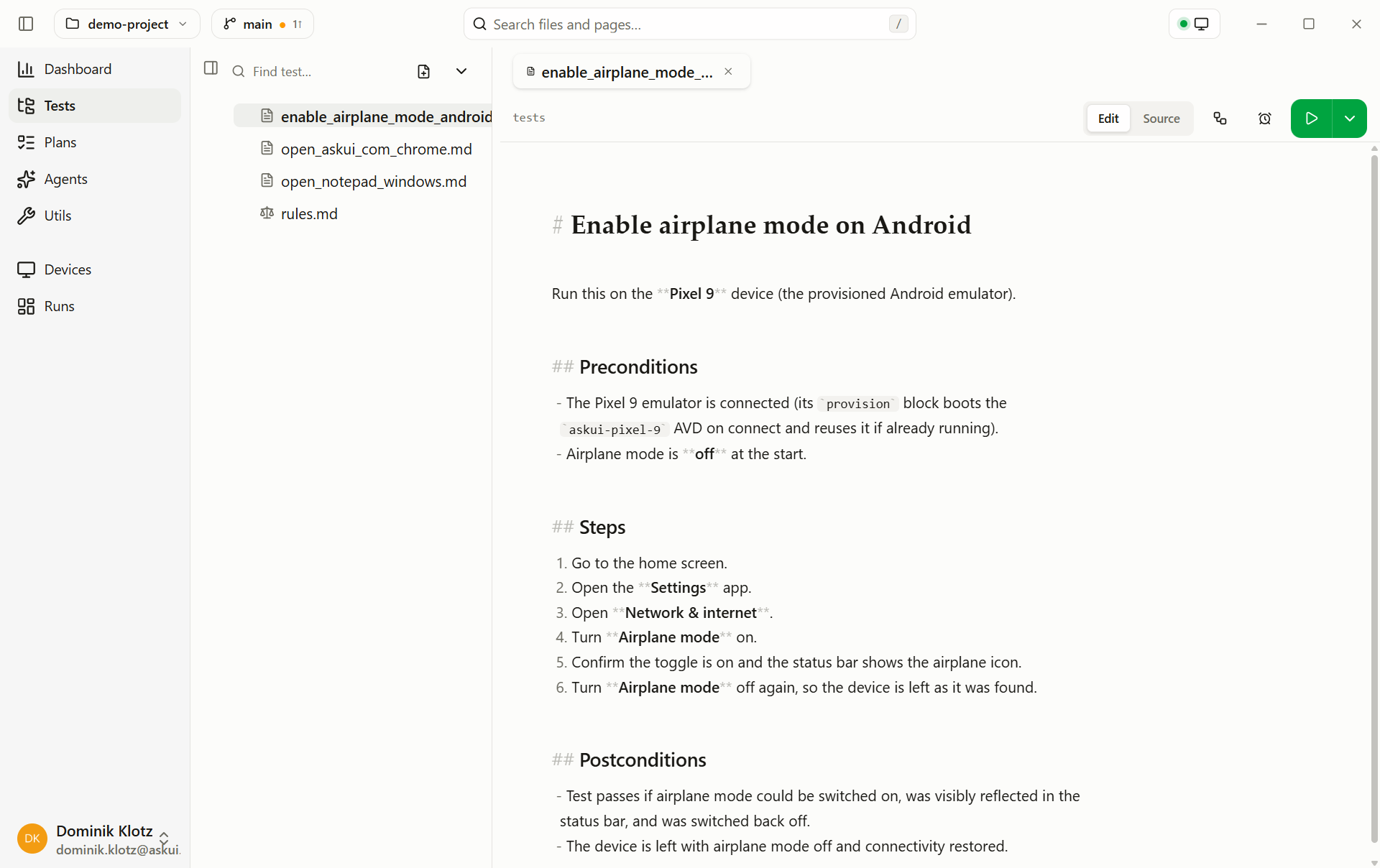
Test cases live as files under tests/ and are managed on the Tests
page: on the left the file tree with all test cases, on the right the editor
with the opened test case and its Run controls.
The concepts
Six building blocks make up everything you author:
All of it lives in one Project, plain files, shared via Git. A suite frames its test cases with setup, teardown, and rules; how suites nest and scope chains is on Organisation & Scope. Cases and setups call procedures for repeated sequences, and reference secrets instead of containing credentials. Test plans select which cases run together, and on which device.
Create a test case
A test case is one file: preconditions, steps with expected results, postconditions. The file name is the test's name in runs and reports.
- Right-click in the file tree → New Markdown (or New CSV).
- Name the file and fill the seeded template. How to phrase steps well: Writing good tests.
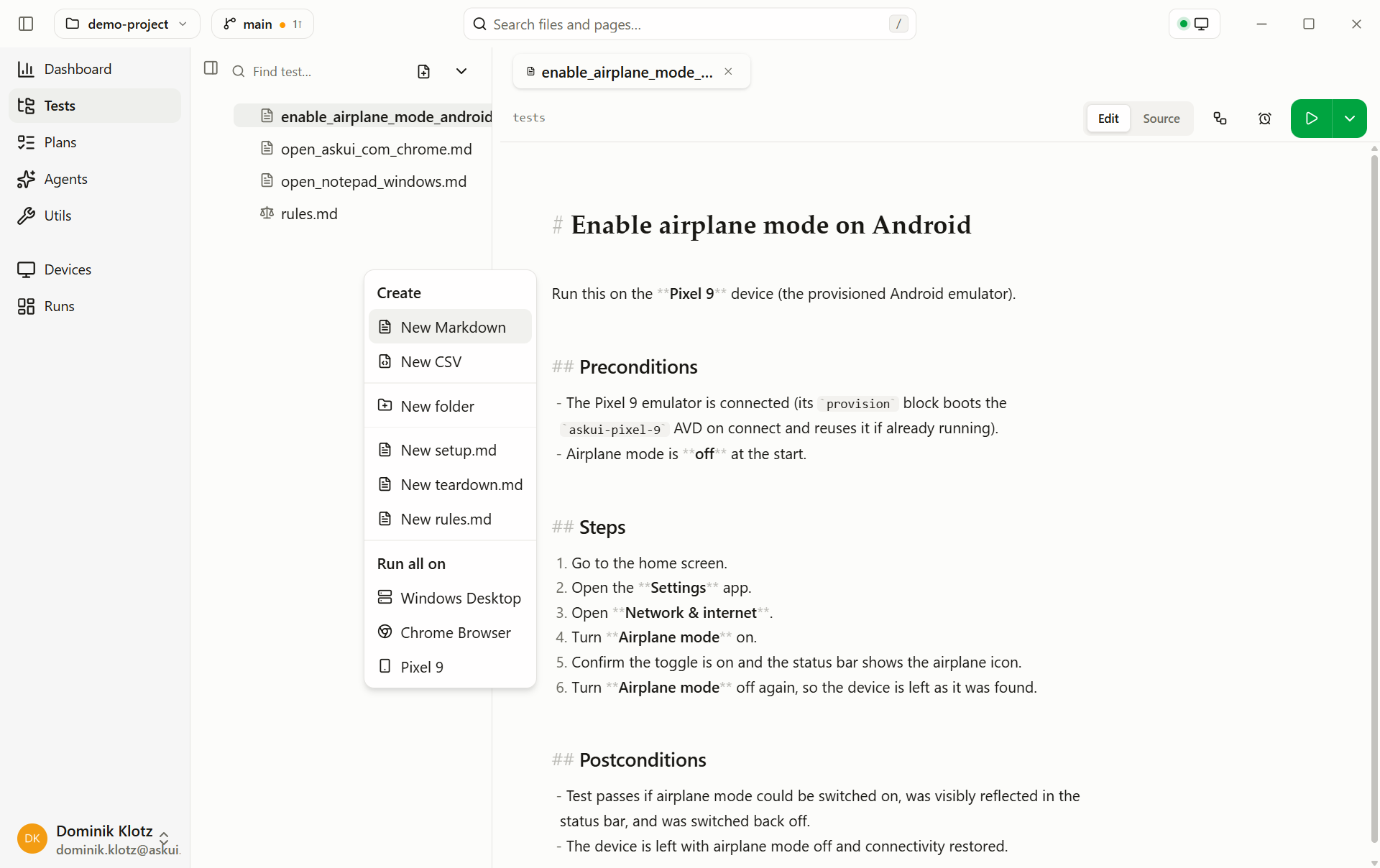
The same menu holds everything on this page: creating files and folders, the quick-create entries for setup / teardown / rules, Run on, Copy / Paste, and Duplicate / Rename / Delete.
Anatomy & formats
Every test case has the same three parts, preconditions, steps, postconditions, whatever the file format:
# Login Flow · Smoke Test

## Preconditions
- No user is currently logged in

## Steps
1. Log in using the `login_to_ui` procedure with the QA secrets
2. Wait until the start screen loads

## Postconditions
- Test passes if the signed-in indicator is visibleTest case ID,Test case name,Precondition,Step number,Step description,Expected result
LOGIN_001,Valid login,App is open on the login screen,1,Enter the QA credentials into the login form,Both fields are filled
,,2,Click the Login button,The start screen is visible and the user is signed in{
"id": "LOGIN_001",
"name": "Valid login",
"preconditions": ["App is open on the login screen"],
"steps": [
{ "action": "Enter the QA credentials into the login form", "expected": "Both fields are filled" },
{ "action": "Click the Login button", "expected": "The user is signed in" }
]
}Preconditions: the state the test assumes, not work to perform: which
screen is open, which user is logged out, which data exists. The agent
checks them before the first step and records whether they were met; a test
whose preconditions aren't met is reported SKIPPED instead of producing a
misleading step failure, because it never ran. Shared preparation work
belongs in setup, not here.
Steps: numbered actions, each paired with what to expect. The agent executes them one at a time: perform the action, compare what it observes against the step's expected result, record both with a screenshot. Each step becomes an expected-vs-actual entry in the run report, so a step without an expected result is a step the report can't judge. Everything a step can express, conditions, waits, checks, procedure calls, is on Step constructs.
Postconditions: the overall pass criterion, phrased as a checkable end state: "Test passes if …". The agent judges it after the last step, independent of which path it took to get there. The case's reported status is the worst of its steps (how it is derived).
These templates are starting points, not schemas, the agent reads a test
the way a tester would, so you're free to choose your own structure. .md
holds one case per file, .csv one case per row (data-driven testing),
and .json, .txt, or .pdf exports from a test-management tool run
as-is. New to Markdown? The
Markdown Guide covers the
syntax in ten minutes.
Target multiple platforms
A first line platforms: desktop, android marks a case cross-platform, it
then runs only on a Cross-platform profile,
and single-platform tests never run there. The steps name the surface, like
a multi-computer test names machines.
Authoring only, for now
Cross-platform profiles connect and report status, but runs against them are not supported yet, the case is ready for when they are.
Use secrets in a test
Never write credentials into a case, reference named secrets by name instead. Add the value once under Extending → Secrets; the agent sees only the name, and the real value is substituted at execution time, redacted from logs and reports:
Sign in with the QA credentials — the secrets named
`QA_USERNAME` and `QA_PASSWORD`.
Run a test case
- Pick a connected device in Run on.
- Press Run, or right-click any file or folder → Run on → a profile.
Details in Running a test.
Manage a test case
All of it is plain file operations via right-click, visible in Git like any other change to your testware.
Duplicate
- Right-click the file → Duplicate.
- Rename the copy, it's the starting point for a similar case.
Copy & paste
Duplicate puts the copy beside the original; copy and paste puts it where you want it — into another suite, or several cases at once.
- Select what to copy. Ctrl/⌘+click a row to add it to the selection, Shift+click to extend from the last one. A folder copies with everything inside it.
- Right-click → Copy, or press Ctrl/⌘+C while the tree has focus (click a row first). With nothing selected, the shortcut copies the open test.
- Right-click the target folder → Paste, or click a folder (or a file in it) and press Ctrl/⌘+V. Pasting onto a file pastes into that file's folder.
The tree selects the copies without opening them, so you can rename them
right away. Names stay as they are unless the folder already has one; then
the copy gets copy before the extension, and copy 2, copy 3 … after
that — so pasting into the same folder always works
(login.md → login copy.md).
Two things a paste never does:
- Rename a convention file.
setup.md,teardown.md,rules.mdandui.mdcopy like any file, but a folder holds only one of each, so where the target already has one, that file is skipped and a message says so — the rest of the paste goes ahead. - Touch the system clipboard. The copied files live in the app; text you copied elsewhere stays, and the shortcuts keep their usual meaning while you are typing in the editor, the search box or a name.
- Copy your unsaved edits. A folder copy takes the files the tree shows.
Drafts of edits you have not saved, and tooling folders such as
.git, are left behind, so the copy is never dirty on arrival.
Copy and paste is available in the tests/ tree only.
Rename
- Right-click the file → Rename.
- Enter the new name. The file name is the test's name in runs and reports; reports of old runs keep the old name.
Delete
- Right-click the file → Delete.
Skip
There is no skip flag: to leave a case out temporarily, run a
test plan that doesn't select it, or move the
file out of tests/.