

Scheduling
Run a test or plan automatically, daily at a time or every N minutes, while AskUI Desktop is open.
A schedule runs a test or test plan without you pressing Run. A test runs on the device profile you pick in the dialog; a plan runs on the device recorded in the plan. A scheduled run whose device is busy queues silently and starts when the device is free.
A closed app means missed runs
Schedules fire only while AskUI Desktop is running, it is not a background service. Close the app, or let the machine sleep or shut down, and the scheduled run does not happen at its time. If the app is back later the same day, the missed daily run starts then; a day that passed entirely while the app was closed is skipped, no firing, no report. For runs that must never be missed, the nightly regression, use the CLI on a build server with your CI scheduler.
A daily schedule you save, edit or switch back on after its time has passed today waits for the next selected day. Saving "weekdays at 05:00" at 16:00 on a Tuesday starts nothing until Wednesday 05:00.
Manage all schedules in one place
The Runs page's sidebar has two views, Runs and Schedules. The Schedules view lists every schedule of the project permanently, each with an on/off toggle, a pencil to edit its cadence, and delete. The + button creates a new one: pick any plan or test of the project in What to run. The Dashboard shows the next few upcoming schedules at a glance.
Create a schedule
- Open the test on the Tests page (or the plan on Test Plans).
- Click the alarm-clock button, the Scheduled runs dialog opens, prefilled with this file.
- Pick the Device profile (for a plan this step disappears, the plan's own devices are used).
- Pick the Cadence: Daily at a time (with weekdays) or Every N minutes.
- Click Add schedule.
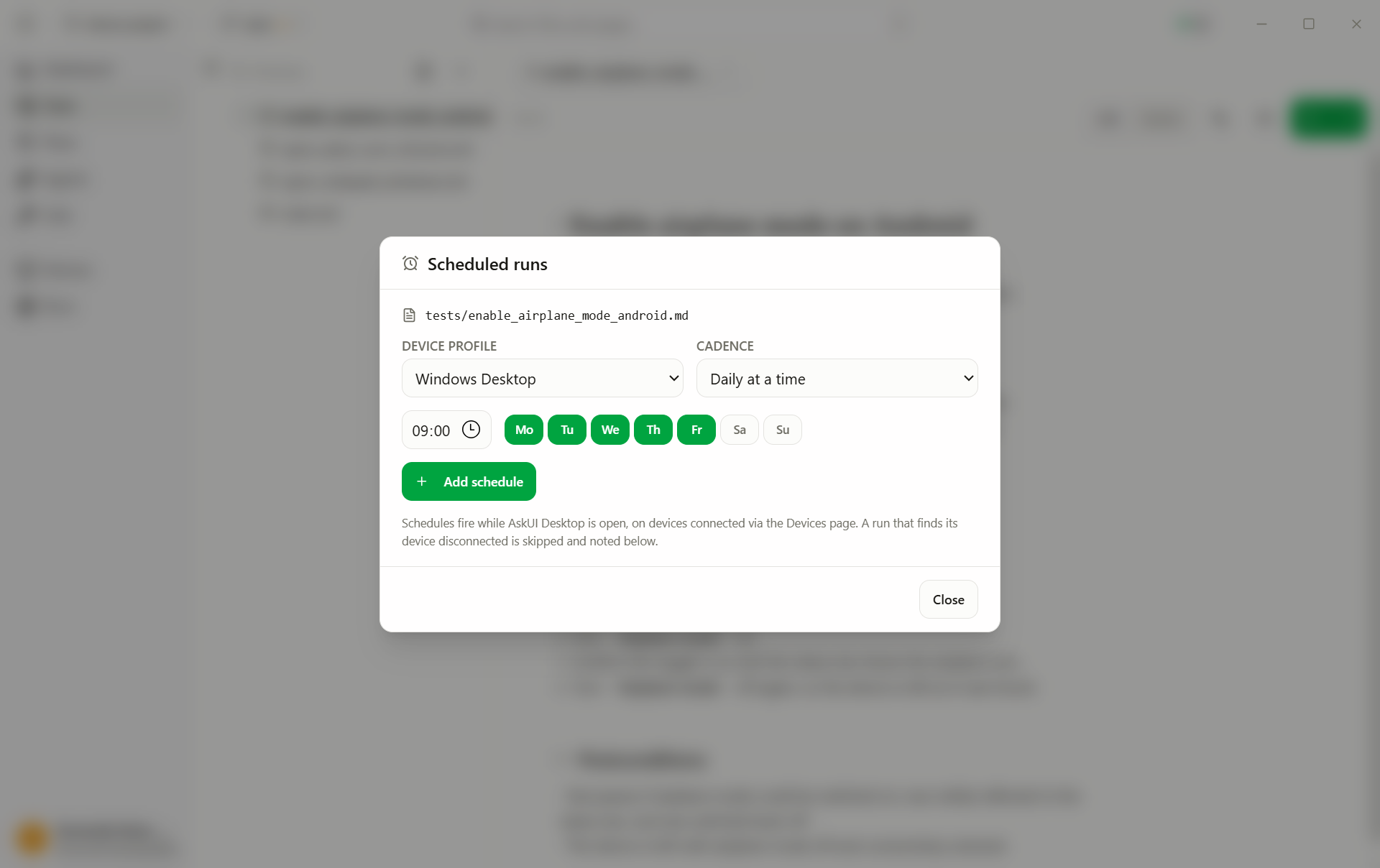
The dialog lists every schedule in the project with its last outcome, the
run's results, or why it was skipped (e.g. the device could not connect).
Schedules live in the project's schedules.json. A due schedule never
double-fires, even when a run outlasts its interval.
Pause or delete a schedule
The dialog lists every schedule in the project:
- Untick the on checkbox to pause a schedule, it stays configured but stops firing (the row dims).
- Click the trash button (Delete schedule) to remove it.
There is no edit: to change the cadence or device, delete the schedule and add it again.