

First run
Create a test case, run it on your local machine, and read the conversation log and report.
Create a test in plain Markdown, run it on your own machine, and read what the agent did. This assumes you've installed AskUI Desktop and signed in.
Create and run a test
Open or create a project. Use the project from the onboarding wizard, or create a new one from the template.
Go to Tests in the sidebar.
Create a test case. Right-click in the file tree → New Markdown, name it
hello_world.md, and write the steps in plain language:
# Hello World · Smoke Test

## Preconditions
- The desktop is on the home screen

## Steps
1. Open the Notes app.
2. Create a new note.
3. Type "Hello World".

## Postconditions
- Test passes if the note shows the text "Hello World".
Run it. With the test open, click Run · Local, the agent runs on this
machine via the built-in Local device profile. (The Run button is a split
button; use its dropdown to pick another device.)
Analyse the run
Go to Runs in the sidebar. The run streams in live and is saved when it finishes.
Conversation log
The conversation log is the run's detailed test execution log: it shows
how the agent worked through your test case, step by step, like watching a
tester do it and think out loud. It's the same view Live Run shows while a run
is in progress. Here's what the hello_world run looks like:
Ensure the desktop is on the home screen.
Open the Notes app and type "Hello World".
I'll open Notes from the Start menu, create a note, and type the text.
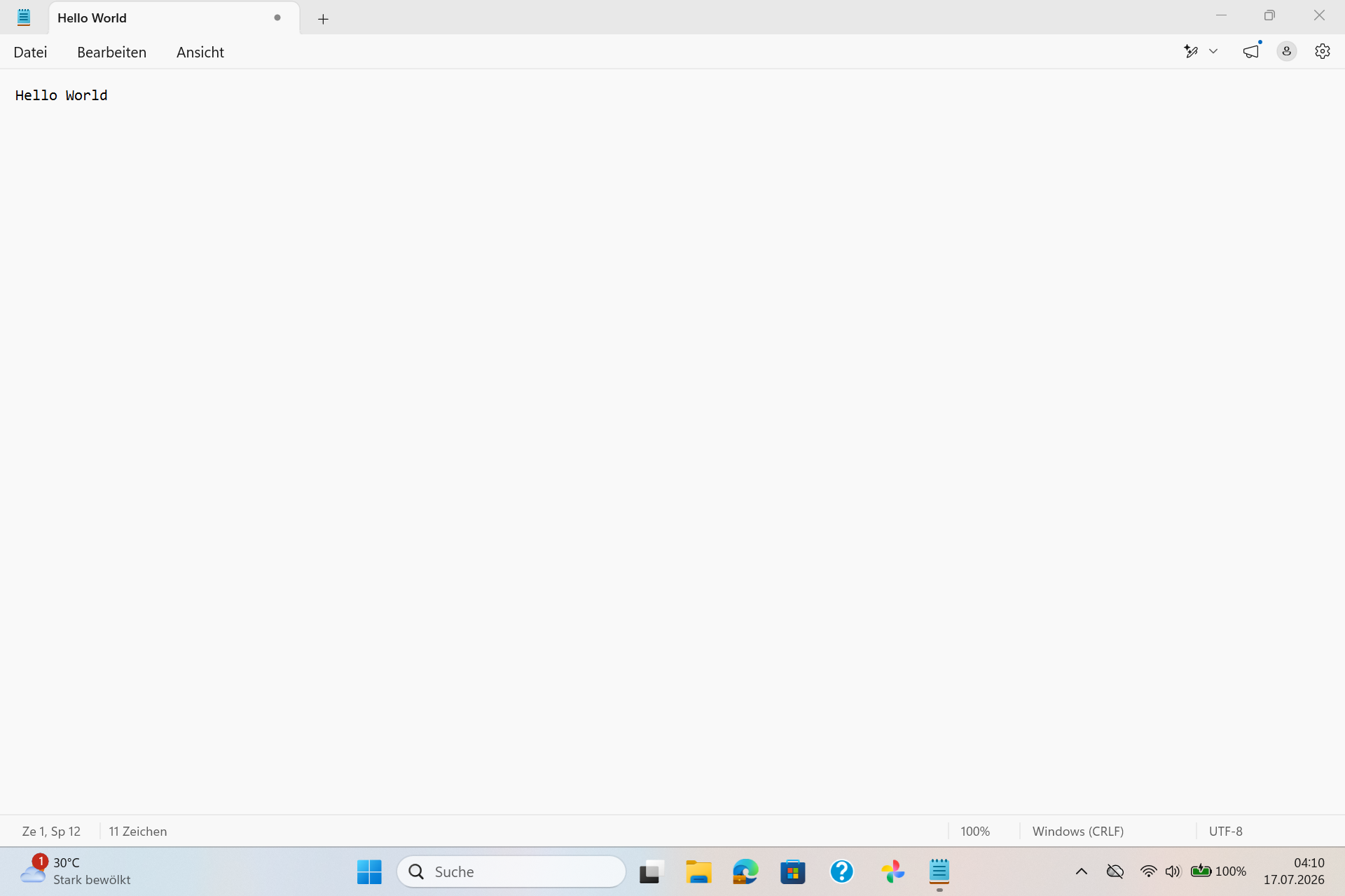
The note shows "Hello World", step verified.
Close the Notes app without saving.
Next: save the note and reopen it to confirm the text persists.
[
  { "role": "user",      "content": { "type": "act", "kind": "setup", "file": "setup.md" } },
  { "role": "user",      "content": { "type": "act", "kind": "test", "file": "tests/hello_world.md" } },
  { "role": "assistant", "content": { "type": "text", "text": "I'll open Notes, create a note, and type the text." } },
  { "role": "assistant", "content": { "type": "tool_use", "name": "click", "input": { "x": 134, "y": 174 } } },
  { "role": "user",      "content": { "type": "tool_result", "content": "clicked" } },
  { "role": "assistant", "content": { "type": "tool_use", "name": "type", "input": { "text": "Hello World" } } },
  { "role": "user",      "content": { "type": "tool_result", "content": "typed" } },
  { "role": "assistant", "content": { "type": "text", "text": "The note shows 'Hello World' — step verified." } },
  { "role": "user",      "content": { "type": "act", "kind": "teardown", "file": "teardown.md" } },
  { "role": "assistant", "content": { "type": "tool_use", "name": "click", "input": { "x": 1884, "y": 21 } } },
  { "role": "user",      "content": { "type": "tool_result", "content": "clicked" } }
]
Follow it top to bottom, like watching over a colleague's shoulder:
The run starts with ① Setup, ② Test, ③ Teardown, the same three phases you
know from any test run, each a numbered block with a Pass / Fail badge. In
our run, act ① put the desktop into the starting state, then act ② picked up
hello_world.md.
Inside act ②, the agent first tells you its plan in plain language, "I'll open Notes from the Start menu, create a note, and type the text." These text lines are the agent thinking out loud; read them like a colleague narrating their work.
Then it acts on the screen, the smaller rows, its tool calls. It takes a
screenshot to see the desktop, clicks at position 134, 174 (where it
spotted the Notes icon, the agent works in screen coordinates, like a human
aiming the mouse), clicks again for a new note, and types Hello World.
Every tool call shows its result (→ clicked); a failed one turns red with the
error.
Then it checks its work: a final screenshot, expanded so you see exactly what the agent saw, and its conclusion, "The note shows Hello World, step verified." That screenshot is your proof the pass is real.
Act ③ cleans up (closing Notes), and the dashed ④ Upcoming row at the bottom is the agent predicting its next step, during a live run you always see where it's heading before it gets there.
If it's too much detail, switch from Detailed to Quiet for just the phases; Raw shows the underlying data. Autofollow keeps the view pinned to what the agent is doing right now.
Test report
Where the conversation log is the test execution log, the report is the
test execution report: the structured record of one test case, its
result, the evidence behind it, and any deviations. It follows the shape you
know from manual test documentation. Here's the report for the hello_world
run:
Test Case Report: hello_world
Test Case ID: hello_world
Date: 2026-07-17
Status: PASSED
Summary
The agent opened the Notes app, created a new note, and typed "Hello World". All steps passed; one incident was resolved during execution (see Issues).
Preconditions
1. The desktop is on the home screen.
Test Steps
1. Open the Notes app, Status: PASSED
- Agent Interpretation: Located the Notes icon on the taskbar and clicked it.
- Expected: The Notes app opens.
- Actual: Notes opened; a "What's new" popup appeared and was dismissed.
2. Create a new note, Status: PASSED
- Agent Interpretation: Clicked the new-tab button to start an empty note.
- Expected: An empty note is focused.
- Actual: A new empty tab opened with the cursor in the text area.
3. Type "Hello World", Status: PASSED
- Agent Interpretation: Typed the text and took a screenshot to verify.
- Expected: The note shows "Hello World".
- Actual: The note shows "Hello World".
Postconditions
1. The note shows the text "Hello World".
Issues
1. A "What's new" popup appeared after launching Notes and blocked the text area. Dismissed it and continued. Consider whether this popup should appear on every launch.
Conclusion
All steps passed. Creating and writing a note works as expected; the launch popup was the only deviation.
# Test Case Report: hello_world
**Test Case ID:** hello_world
**Date:** 2026-07-17
**Status:** PASSED
## Summary
The agent opened the Notes app, created a new note, and typed "Hello World".
All steps passed; one incident was resolved during execution (see Issues).
## Preconditions
1. The desktop is on the home screen.
## Test Steps
1. **Open the Notes app** — Status: **PASSED**
- **Agent Interpretation:** Located the Notes icon on the taskbar and clicked it.
- **Expected:** The Notes app opens.
- **Actual:** Notes opened; a "What's new" popup appeared and was dismissed.
2. **Create a new note** — Status: **PASSED**
- **Agent Interpretation:** Clicked the new-tab button to start an empty note.
- **Expected:** An empty note is focused.
- **Actual:** A new empty tab opened with the cursor in the text area.
3. **Type "Hello World"** — Status: **PASSED**
- **Agent Interpretation:** Typed the text and took a screenshot to verify.
- **Expected:** The note shows "Hello World".
- **Actual:** The note shows "Hello World".
- 
## Postconditions
1. The note shows the text "Hello World".
## Issues
1. A "What's new" popup appeared after launching Notes and blocked the text
area. Dismissed it and continued. Consider whether this popup should appear
on every launch.
## Conclusion
All steps passed. Creating and writing a note works as expected; the launch
popup was the only deviation.Section by section:
Header: Test case ID, execution date, overall status, your at-a-glance answer.
Summary: The result in one or two sentences. Start here.
Preconditions: The entry criteria the agent verified before executing, rules out an environment problem in disguise.
Test Steps: Per step: status, expected vs. actual result, screenshot as evidence. This is where you localize which step diverged.
Postconditions: The exit state the test asserted.
Issues: Your incident log, deviations the agent hit during execution, including ones it resolved itself, like the "What's new" popup above, an unexpected dialog, or leftover data it had to delete first. A test can be PASSED and still list issues, and they often point at real findings a green checkmark would hide, review this section even when everything is green.
Conclusion: The overall result and its justification.
Five statuses exist, for steps and for the test overall, the test takes the worst status of its steps:
PASSED: the actual result matched the expected one. The agent never bends
a test to reach a pass.
WARN: passed, but with a caveat worth your attention (slow response, minor
visual deviation).
FAILED: the step executed, but the actual result didn't match the
expected one.
SKIPPED: intentionally not executed, e.g. a precondition wasn't met.
BROKEN: couldn't execute at all: a crash or an infrastructure problem,
not a functional result.
For details and the cross-run summary report, see Reading a run report.
And when the log or report shows the agent got something wrong, clicked the wrong element, misread a screen, drew the wrong conclusion, you don't debug code, you teach it: sharpen the wording of the test case, add a rule, or give it the missing knowledge in the prompts. How test cases, rules, and prompts work together is covered in Prompting best practices.
Make it yours
Once the example passes, open tests/ui.md and describe your own
app, its main screens, how to tell you're signed in, and any quirks. It's the
single most important file for reliable runs. See
Prompting best practices.