> ## Documentation Index
> Fetch the complete documentation index at: https://docs.askui.com/llms.txt
> Use this file to discover all available pages before exploring further.

# Element Detection and OCR Issues

> Solutions for element selection, text recognition, and detection problems

# Misspellings of Words

**Problem:** The OCR model sometimes misreads characters, especially in certain fonts or noisy images. This can result in words being misclassified or misspelled, which then causes the automation to fail when it searches for exact matches.

**Example:**

<Columns cols={2}>
  <Card>
    <div style={{ fontWeight: 'bold', marginBottom: '12px' }}>
      ✅ Expected Behavior
    </div>

    <div style={{ marginBottom: '8px' }}>
      ⵊ <em>Text is correctly spelled:</em>
    </div>

    <div style={{ marginBottom: '12px' }}>
      <span style={{ whiteSpace: 'nowrap' }}>
        ✅ Hallo ✅
      </span>
    </div>

    <div>
      👍 Works with `click().text("Hallo")`
    </div>
  </Card>

  <Card>
    <div style={{ fontWeight: 'bold', marginBottom: '12px' }}>
      ❌ Actual Issue
    </div>

    <div style={{ marginBottom: '8px' }}>
      ⵊ <em>Text is misspelled</em>
    </div>

    <div style={{ marginBottom: '12px' }}>
      <span style={{ whiteSpace: 'nowrap' }}>
        ❌ `HaII0` ❌
      </span>
    </div>

    <div>
      👎 Can't find `click().text("Hallo")`. Because of recognition issues. (`l`->`I`and `o` -> `0`)
    </div>
  </Card>
</Columns>

### Solutions

<AccordionGroup>
  <Accordion title="Re-Teach Sentence-Level OCR Model">
    You can directly correct OCR predictions and improve OCR model accuracy by training your workspace-specific model.

    **Steps:**

    1. Start the AskUI shell:
       ```bash theme={null}
       askui-shell
       ```
    2. Launch the OCR Teaching App:

       ```bash theme={null}
       AskUI-StartOCRTeaching
       ```
    3. Upload a screenshot containing the misclassified word (e.g., “Hallo”).
    4. Switch to **Trained Model** for precise corrections.
    5. Select the wrongly detected word (`HaII0`) and replace it with the correct label: `Hallo`.
    6. Press the **Train Correction**
    7. Click **"Copy Model"** to copy the newly trained model ID.
    8. In your automation code, update on model config on global level or on step level to use the new model:

    Global Level Model Composition

    <CodeGroup>
      ```python Python theme={null}
          with VisionAgent(model= {
              "locate": ModelComposition([ModelDefinition(
                      task="e2e_ocr",
                      architecture="easy_ocr",
                      version="1",
                      interface="online_learning",
                      useCase="<your-workspace-id>",
                      tags=["trained"]
                  )])
          }) as agent:
      ```

      ```typescript TypeScript theme={null}
          // askui-helper.ts | Global Level Model Configutaion
          ...
          aui = await UiControlClient.build({
              ...
              modelComposition: [{
                      "task": "e2e_ocr",
                      "architecture": "easy_ocr",
                      "version": "1",
                      "interface": "online_learning",
                      "useCase": "<your-workspace-id>",
                      "tags": ["trained"]
                  }]
          });
          ...
      ```
    </CodeGroup>

    Step Level Model Composition

    <CodeGroup>
      ```python Python theme={null}
          agent.click("Alice Johnson", model=ModelComposition([ModelDefinition(
                      task="e2e_ocr",
                      architecture="easy_ocr",
                      version="1",
                      interface="online_learning",
                      useCase="<your-workspce-id>",
                      tags=["trained"]
                  )]))
      ```

      ```typescript TypeScript theme={null}
      await aui.click().text("Alice Johnson").exec([{
          "task": "e2e_ocr",
          "architecture": "easy_ocr",
          "version": "1",
          "interface": "online_learning",
          "useCase": "<your-workspce-id>",
          "tags": ["trained"]
      }])
      ```
    </CodeGroup>
  </Accordion>
</AccordionGroup>

# Text Detection Issues

## 1. Icon Text Merging

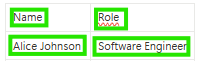
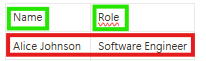
**Problem:** Sometimes, Text Detector/annotation tool, **merges an icon and texts into one**, even though they look merged on screen.

**Example:** Say you want to click **just the name** "Alice Johnson" field or **just the position** field in a interface - but OCR detects them as one long string:

<Columns cols={2}>
  <Card>
    <div style={{ fontWeight: 'bold', marginBottom: '12px' }}>
      ✅ Expected Behavior
    </div>

    <div style={{ marginBottom: '8px' }}>
      🖼️ <em>Icon and Text are detected separately:</em>
    </div>

    <div style={{ marginBottom: '12px' }}>
      <img src="https://mintcdn.com/askui/S_l-F1JleJ291Lq-/02-how-to-guides/04-troubleshooting/images/IconTextMergingExpectedBehaviour1.png?fit=max&auto=format&n=S_l-F1JleJ291Lq-&q=85&s=0da35374ae5279ea6e04cfc8d30dffc7" alt="Icon and text detected separately" width="229" height="39" data-path="02-how-to-guides/04-troubleshooting/images/IconTextMergingExpectedBehaviour1.png" />
    </div>

    <div style={{ marginBottom: '12px' }}>
      <span style={{ whiteSpace: 'nowrap' }}>
        🧑 ✅ Name ✅  🤖 ✅ Role ✅
      </span>
    </div>

    <div>
      👍 Works with `click().text("Name")` or `click().text("Name")`
    </div>
  </Card>

  <Card>
    <div style={{ fontWeight: 'bold', marginBottom: '12px' }}>
      ❌ Actual Issue
    </div>

    <div style={{ marginBottom: '8px' }}>
      🖼️ <em>Icon and text are detected together:</em>
    </div>

    <div style={{ marginBottom: '12px' }}>
      <img src="https://mintcdn.com/askui/S_l-F1JleJ291Lq-/02-how-to-guides/04-troubleshooting/images/IconTextMergingExpectedBehaviour2.png?fit=max&auto=format&n=S_l-F1JleJ291Lq-&q=85&s=919cf30c3020a1ae1ccfce3718a28e4b" alt="Icon and text merged together" width="229" height="39" data-path="02-how-to-guides/04-troubleshooting/images/IconTextMergingExpectedBehaviour2.png" />
    </div>

    <div style={{ marginBottom: '12px' }}>
      <span style={{ whiteSpace: 'nowrap' }}>
        `🧑 Name` ❌  `🤖 Role` ✅
      </span>
    </div>

    <div>
      👎 Can't find `click().text("Name")`.
    </div>
  </Card>
</Columns>

### Solution

<AccordionGroup>
  <Accordion title="Re-Teach Sentence-Level OCR Model">
    You can ignore train the OCR Recognition model to ignore the OCR detection error.

    **Steps:**

    1. Start the AskUI shell:
       ```bash theme={null}
       askui-shell
       ```
    2. Launch the OCR Teaching App:

       ```bash theme={null}
       AskUI-StartOCRTeaching
       ```
    3. Upload a screenshot containing the misclassified word (e.g., “Hallo”).
    4. Switch to **Trained Model** for precise corrections.
    5. Select the wrongly detected word (`HaII0`) and replace it with the correct label: `Hallo`.
    6. Press the **Train Correction**
    7. Click **"Copy Model"** to copy the newly trained model ID.
    8. In your automation code, update on model config on global level or on step level to use the new model:

    Global Level Model Composition

    <CodeGroup>
      ```python Python theme={null}
          with VisionAgent(model= {
              "locate": ModelComposition([ModelDefinition(
                      task="e2e_ocr",
                      architecture="easy_ocr",
                      version="1",
                      interface="online_learning",
                      useCase="<your-workspace-id>",
                      tags=["trained"]
                  )])
          }) as agent:
      ```

      ```typescript TypeScript theme={null}
          // askui-helper.ts | Global Level Model Configutaion
          ...
          aui = await UiControlClient.build({
              ...
              modelComposition: [{
                      "task": "e2e_ocr",
                      "architecture": "easy_ocr",
                      "version": "1",
                      "interface": "online_learning",
                      "useCase": "<your-workspace-id>",
                      "tags": ["trained"]
                  }]
          });
          ...
      ```
    </CodeGroup>

    Step Level Model Composition

    <CodeGroup>
      ```python Python theme={null}
          agent.click("Alice Johnson", model=ModelComposition([ModelDefinition(
                      task="e2e_ocr",
                      architecture="easy_ocr",
                      version="1",
                      interface="online_learning",
                      useCase="<your-workspce-id>",
                      tags=["trained"]
                  )]))
      ```

      ```typescript TypeScript theme={null}
      await aui.click().text("Alice Johnson").exec([{
          "task": "e2e_ocr",
          "architecture": "easy_ocr",
          "version": "1",
          "interface": "online_learning",
          "useCase": "<your-workspce-id>",
          "tags": ["trained"]
      }])
      ```
    </CodeGroup>
  </Accordion>

  <Accordion title="Use Custom Model Word-Level Detection">
    <CodeGroup>
      ```python Python theme={null}
          agent.click("Alice Johnson", model=ModelComposition([ModelDefinition(
                      task="e2e_ocr",
                      architecture="easy_ocr",
                      version="1",
                      interface="online_learning",
                      useCase="<your-workspce-id>",
                      tags=["word_level"]
                  )]))
      ```

      ```typescript TypeScript theme={null}
      await aui.click().text("Alice Johnson").exec([{
          "task": "e2e_ocr",
          "architecture": "easy_ocr",
          "version": "1",
          "interface": "online_learning",
          "useCase": "<your-workspce-id>",
          "tags": ["word_level"]
      }])
      ```
    </CodeGroup>
  </Accordion>
</AccordionGroup>

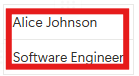
## 2. Merged Texts

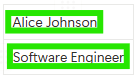
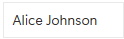
**Problem:** Sometimes, Text Detector/ annotation tool, **merges two separate texts into one**, even though they look clearly split on screen.

**Example:** Say you want to click **just the name** "Alice Johnson" field or **just the position** field in a interface - but OCR detects them as one long string:

<Columns cols={2}>
  <Card>
    <div style={{ fontWeight: 'bold', marginBottom: '12px' }}>
      ✅ Expected Behavior
    </div>

    <div style={{ marginBottom: '8px' }}>
      🖼️ <em>Text fields detected separately:</em>
    </div>

    <div style={{ marginBottom: '12px' }}>
      <img src="https://mintcdn.com/askui/S_l-F1JleJ291Lq-/02-how-to-guides/04-troubleshooting/images/MergedTextExpectedBehaviour.png?fit=max&auto=format&n=S_l-F1JleJ291Lq-&q=85&s=945c1609523cec4ba600f12c1137287b" alt="Text fields detected separately" width="206" height="61" data-path="02-how-to-guides/04-troubleshooting/images/MergedTextExpectedBehaviour.png" />
    </div>

    <div style={{ marginBottom: '12px' }}>
      <span style={{ whiteSpace: 'nowrap' }}>
        `Alice Johnson` ✅  `Software Engineer` ✅
      </span>
    </div>

    <div>
      👍 Works with `text("Alice Johnson")` or `text("Software Engineer")`
    </div>
  </Card>

  <Card>
    <div style={{ fontWeight: 'bold', marginBottom: '12px' }}>
      ❌ Actual Issue
    </div>

    <div style={{ marginBottom: '8px' }}>
      🖼️ <em>Texts merged into one block:</em>
    </div>

    <div style={{ marginBottom: '12px' }}>
      <img src="https://mintcdn.com/askui/S_l-F1JleJ291Lq-/02-how-to-guides/04-troubleshooting/images/MergedTextActualIssue.png?fit=max&auto=format&n=S_l-F1JleJ291Lq-&q=85&s=8c976e47bc0804db3c3be3b1164444f8" alt="Texts merged into one block" width="206" height="61" data-path="02-how-to-guides/04-troubleshooting/images/MergedTextActualIssue.png" />
    </div>

    <div style={{ marginBottom: '12px' }}>
      <span style={{ whiteSpace: 'nowrap' }}>
        `Alice Johnson Software Engineer`❌
      </span>
    </div>

    <div>
      👎 Can't find either one on its own.
    </div>
  </Card>
</Columns>

### Solutions

<AccordionGroup>
  <Accordion title="Use Default Word-Level Detection (Best Practice)">
    <CodeGroup>
      ```python Python theme={null}
          agent.click("Alice Johnson", model=ModelComposition([ModelDefinition(
                      task="e2e_ocr",
                      architecture="easy_ocr",
                      version="1",
                      interface="online_learning",
                      useCase="00000000_0000_0000_0000_000000000000",
                      tags=["word_level"]
                  )]))
      ```

      ```typescript TypeScript theme={null}
      await aui.click().text("Alice Johnson").exec([{
          "task": "e2e_ocr",
          "architecture": "easy_ocr",
          "version": "1",
          "interface": "online_learning",
          "useCase": "00000000_0000_0000_0000_000000000000",
          "tags": ["word_level"]
      }])
      ```
    </CodeGroup>
  </Accordion>

  <Accordion title="Use Custom Model Word-Level Detection">
    <CodeGroup>
      ```python Python theme={null}
          agent.click("Alice Johnson", model=ModelComposition([ModelDefinition(
                      task="e2e_ocr",
                      architecture="easy_ocr",
                      version="1",
                      interface="online_learning",
                      useCase="<your-workspce-id>",
                      tags=["word_level"]
                  )]))
      ```

      ```typescript TypeScript theme={null}
      await aui.click().text("Alice Johnson").exec([{
          "task": "e2e_ocr",
          "architecture": "easy_ocr",
          "version": "1",
          "interface": "online_learning",
          "useCase": "<your-workspce-id>",
          "tags": ["word_level"]
      }])
      ```
    </CodeGroup>
  </Accordion>

  <Accordion title="Use relative anchore Element">
    This command show how you can use an anchore element move the mouse over another element.

    ```tsx theme={null}
      await aui.moveMouseRelativeTo(100, 0).containsText("Name").exec()
    ```
  </Accordion>
</AccordionGroup>

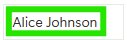
## 3.Text Separation

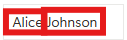
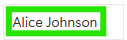
**Problem:** Sometimes, Text Detector/ annotation tool, septerates a text into **two texts**, even though they look clearly merged on screen.

**Example:** Say you want to click **just the name** "Alice Johnson" field or **just the position** field in a interface - but OCR detects them as two words:

<Columns cols={2}>
  <Card>
    <div style={{ fontWeight: 'bold', marginBottom: '12px' }}>
      ✅ Expected Behavior
    </div>

    <div style={{ marginBottom: '8px' }}>
      🖼️ <em>Words are detected as one sentence:</em>
    </div>

    <div style={{ marginBottom: '12px' }}>
      <img src="https://mintcdn.com/askui/S_l-F1JleJ291Lq-/02-how-to-guides/04-troubleshooting/images/TextSeparationExpectedBehaviour.png?fit=max&auto=format&n=S_l-F1JleJ291Lq-&q=85&s=46bbbe92d75cda2bbf809e5405244858" alt="Words detected as one sentence" width="127" height="40" data-path="02-how-to-guides/04-troubleshooting/images/TextSeparationExpectedBehaviour.png" />
    </div>

    <div style={{ marginBottom: '12px' }}>
      <span style={{ whiteSpace: 'nowrap' }}>
        `Alice Johnson` ✅
      </span>
    </div>

    <div>
      👍 Works with `text("Alice Johnson")`
    </div>
  </Card>

  <Card>
    <div style={{ fontWeight: 'bold', marginBottom: '12px' }}>
      ❌ Actual Issue
    </div>

    <div style={{ marginBottom: '8px' }}>
      🖼️ <em>Words are detected as separated texts:</em>
    </div>

    <div style={{ marginBottom: '12px' }}>
      <img src="https://mintcdn.com/askui/S_l-F1JleJ291Lq-/02-how-to-guides/04-troubleshooting/images/TextSeparationAcctualIssue.png?fit=max&auto=format&n=S_l-F1JleJ291Lq-&q=85&s=ecaf9e901bebb72c034c9b9a6c107b28" alt="Words detected separately" width="127" height="40" data-path="02-how-to-guides/04-troubleshooting/images/TextSeparationAcctualIssue.png" />
    </div>

    <div style={{ marginBottom: '12px' }}>
      <span style={{ whiteSpace: 'nowrap' }}>
        `Alice`❌ `Johnson`❌
      </span>
    </div>

    <div>
      👎 Can't find either `text("Alice Johnson")` on its own.
    </div>
  </Card>
</Columns>

### Solution

<AccordionGroup>
  <Accordion title="Use Default Word-Level Detection (Best Practice)">
    <CodeGroup>
      ```python Python theme={null}
          agent.click("Alice Johnson", model=ModelComposition([ModelDefinition(
                      task="e2e_ocr",
                      architecture="easy_ocr",
                      version="1",
                      interface="online_learning",
                      useCase="00000000_0000_0000_0000_000000000000",
                      tags=["word_level"]
                  )]))
      ```

      ```typescript TypeScript theme={null}
      await aui.click().text("Alice Johnson").exec([{
          "task": "e2e_ocr",
          "architecture": "easy_ocr",
          "version": "1",
          "interface": "online_learning",
          "useCase": "00000000_0000_0000_0000_000000000000",
          "tags": ["word_level"]
      }])
      ```
    </CodeGroup>
  </Accordion>

  <Accordion title="Use Custom Model Word-Level Detection">
    <CodeGroup>
      ```python Python theme={null}
          agent.click("Alice Johnson", model=ModelComposition([ModelDefinition(
                      task="e2e_ocr",
                      architecture="easy_ocr",
                      version="1",
                      interface="online_learning",
                      useCase="<your-workspce-id>",
                      tags=["word_level"]
                  )]))
      ```

      ```typescript TypeScript theme={null}
      await aui.click().text("Alice Johnson").exec([{
          "task": "e2e_ocr",
          "architecture": "easy_ocr",
          "version": "1",
          "interface": "online_learning",
          "useCase": "<your-workspce-id>",
          "tags": ["word_level"]
      }])
      ```
    </CodeGroup>
  </Accordion>
</AccordionGroup>

## 4. Vertical Text Merging

**Problem:** Sometimes, Text Detector/ annotation tool, merges two lines to one text, even though they look clearly as two lines on screen.

**Example:** Say you want to click **just the name** "Alice Johnson" field or **just the position** field in a interface - but OCR detects them as one:

<Columns cols={2}>
  <Card>
    <div style={{ fontWeight: 'bold', marginBottom: '12px' }}>
      ✅ Expected Behavior
    </div>

    <div style={{ marginBottom: '8px' }}>
      🖼️ <em>Texts are detected as two lines:</em>
    </div>

    <div style={{ marginBottom: '12px' }}>
      <img src="https://mintcdn.com/askui/S_l-F1JleJ291Lq-/02-how-to-guides/04-troubleshooting/images/VerticalTextMergingExpectedBehaviour.png?fit=max&auto=format&n=S_l-F1JleJ291Lq-&q=85&s=c7a709ffaebb134a7d05c25f58593281" alt="Texts detected as two lines" width="139" height="76" data-path="02-how-to-guides/04-troubleshooting/images/VerticalTextMergingExpectedBehaviour.png" />
    </div>

    <div style={{ marginBottom: '12px' }}>
      <span style={{ whiteSpace: 'nowrap' }}>
        `Alice Johnson` ✅
      </span>
    </div>

    <div>
      👍 Works with `text("Alice Johnson")`
    </div>
  </Card>

  <Card>
    <div style={{ fontWeight: 'bold', marginBottom: '12px' }}>
      ❌ Actual Issue
    </div>

    <div style={{ marginBottom: '8px' }}>
      🖼️ <em>Texts are detected as one text:</em>
    </div>

    <div style={{ marginBottom: '12px' }}>
      <img src="https://mintcdn.com/askui/S_l-F1JleJ291Lq-/02-how-to-guides/04-troubleshooting/images/VerticalTextMergingActualIssue.png?fit=max&auto=format&n=S_l-F1JleJ291Lq-&q=85&s=b8d12563c87f7bd9f39da4662262e370" alt="Texts merged vertically" width="139" height="76" data-path="02-how-to-guides/04-troubleshooting/images/VerticalTextMergingActualIssue.png" />
    </div>

    <div style={{ marginBottom: '12px' }}>
      <span style={{ whiteSpace: 'nowrap' }}>
        `<no words recognized>`❌
      </span>
    </div>

    <div>
      👎 Can't find either `text("Alice Johnson")` on its own.
    </div>
  </Card>
</Columns>

### Solution

<AccordionGroup>
  <Accordion title="Use Default Word-Level Detection (Best Practice)">
    <CodeGroup>
      ```python Python theme={null}
          agent.click("Alice Johnson", model=ModelComposition([ModelDefinition(
                      task="e2e_ocr",
                      architecture="easy_ocr",
                      version="1",
                      interface="online_learning",
                      useCase="00000000_0000_0000_0000_000000000000",
                      tags=["word_level"]
                  )]))
      ```

      ```typescript TypeScript theme={null}
      await aui.click().text("Alice Johnson").exec([{
          "task": "e2e_ocr",
          "architecture": "easy_ocr",
          "version": "1",
          "interface": "online_learning",
          "useCase": "00000000_0000_0000_0000_000000000000",
          "tags": ["word_level"]
      }])
      ```
    </CodeGroup>
  </Accordion>

  <Accordion title="Use Custom Model Word-Level Detection">
    <CodeGroup>
      ```python Python theme={null}
          agent.click("Alice Johnson", model=ModelComposition([ModelDefinition(
                      task="e2e_ocr",
                      architecture="easy_ocr",
                      version="1",
                      interface="online_learning",
                      useCase="<your-workspce-id>",
                      tags=["word_level"]
                  )]))
      ```

      ```typescript TypeScript theme={null}
      await aui.click().text("Alice Johnson").exec([{
          "task": "e2e_ocr",
          "architecture": "easy_ocr",
          "version": "1",
          "interface": "online_learning",
          "useCase": "<your-workspce-id>",
          "tags": ["word_level"]
      }])
      ```
    </CodeGroup>
  </Accordion>
</AccordionGroup>

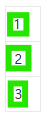
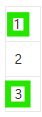
## 5. Single Character not Detected

**Problem:** Sometimes, Text Detector/ annotation tool, does not detect single charactors, even though they look clearly on screen.

**Example:** Say you want to click \*\*just the character "2" - but OCR does not detects them:

<Columns cols={2}>
  <Card>
    <div style={{ fontWeight: 'bold', marginBottom: '12px' }}>
      ✅ Expected Behavior
    </div>

    <div style={{ marginBottom: '8px' }}>
      🖼️ <em>Single chars are detected:</em>
    </div>

    <div style={{ marginBottom: '12px' }}>
      <img src="https://mintcdn.com/askui/S_l-F1JleJ291Lq-/02-how-to-guides/04-troubleshooting/images/SingleCharacternotDetectedExpectedBehaviour.png?fit=max&auto=format&n=S_l-F1JleJ291Lq-&q=85&s=7264a918956bc1ba2c60bee66f90621d" alt="Single characters detected" width="42" height="117" data-path="02-how-to-guides/04-troubleshooting/images/SingleCharacternotDetectedExpectedBehaviour.png" />
    </div>

    <div style={{ marginBottom: '12px' }}>
      <span style={{ whiteSpace: 'nowrap' }}>
        `1` ✅ `2` ✅ `3` ✅
      </span>
    </div>

    <div>
      👍 Works with `text("2")`
    </div>
  </Card>

  <Card>
    <div style={{ fontWeight: 'bold', marginBottom: '12px' }}>
      ❌ Actual Issue
    </div>

    <div style={{ marginBottom: '8px' }}>
      🖼️ <em>Char 2 is not detected:</em>
    </div>

    <div style={{ marginBottom: '12px' }}>
      <img src="https://mintcdn.com/askui/S_l-F1JleJ291Lq-/02-how-to-guides/04-troubleshooting/images/SingleCharacternotDetectedActualIssue.png?fit=max&auto=format&n=S_l-F1JleJ291Lq-&q=85&s=406c4ef4a203c1d81dbd550effa4d3bc" alt="Character 2 not detected" width="42" height="117" data-path="02-how-to-guides/04-troubleshooting/images/SingleCharacternotDetectedActualIssue.png" />
    </div>

    <div style={{ marginBottom: '12px' }}>
      <span style={{ whiteSpace: 'nowrap' }}>
        `1` ✅ `2` ❌ `3` ✅
      </span>
    </div>

    <div>
      👎 Can't find either `text("2")` on its own.
    </div>
  </Card>
</Columns>

### Solution

<AccordionGroup>
  <Accordion title="Use AI Element">
    Single characters are sometimes flaky. So it's better to relay on AI element.

    **Steps:**

    1. Open AskUI Shell

    ```bash theme={null}
    askui-shell
    ```

    2. Create a new AI Element

    ```bash theme={null}
    # Capture elements from your screen
    AskUI-NewAiElement -Name "my-element-name"
    ```

    3. Use captured AI Elements in your code:

    <CodeGroup>
      ```python Python theme={null}
      from askui import locators as loc
      ...
      with VisionAgent() as agent:
          agent.click(loc.AiElement("my-element-name"))
      ```

      ```python Typescript theme={null}
       await aui.click().aiElement("my-element-name").exec()
      ```
    </CodeGroup>

    <Note>
      If you cannot use the AskUI-NewAIElement command, activate experimental commands by running `AskUI-ImportExperimentalCommands` in your terminal.
    </Note>
  </Accordion>
</AccordionGroup>

## 6. Text not Detected

**Problem:** Sometimes, for no apparent reason, Text Detector/ annotation tool does not detect a text, even though you can see it clearly on screen.

**Example:** Say you want to click **just the name** "Alice Johnson" field - but OCR does not detects the text at all:

<Columns cols={2}>
  <Card>
    <div style={{ fontWeight: 'bold', marginBottom: '12px' }}>
      ✅ Expected Behavior
    </div>

    <div style={{ marginBottom: '8px' }}>
      🖼️ <em>Text was detected:</em>
    </div>

    <div style={{ marginBottom: '12px' }}>
      <img src="https://mintcdn.com/askui/S_l-F1JleJ291Lq-/02-how-to-guides/04-troubleshooting/images/TextnotDetectedExpectedBehaviour.png?fit=max&auto=format&n=S_l-F1JleJ291Lq-&q=85&s=6cc057ab8601bdc0bb069ce65692670d" alt="Text detected properly" width="127" height="40" data-path="02-how-to-guides/04-troubleshooting/images/TextnotDetectedExpectedBehaviour.png" />
    </div>

    <div style={{ marginBottom: '12px' }}>
      <span style={{ whiteSpace: 'nowrap' }}>
        `Alice Johnson` ✅
      </span>
    </div>

    <div>
      👍 Works with `text("Alice Johnson")`
    </div>
  </Card>

  <Card>
    <div style={{ fontWeight: 'bold', marginBottom: '12px' }}>
      ❌ Actual Issue
    </div>

    <div style={{ marginBottom: '8px' }}>
      🖼️ <em>Text wasn't detected</em>
    </div>

    <div style={{ marginBottom: '12px' }}>
      <img src="https://mintcdn.com/askui/S_l-F1JleJ291Lq-/02-how-to-guides/04-troubleshooting/images/TextnotDetectedActualIssue.png?fit=max&auto=format&n=S_l-F1JleJ291Lq-&q=85&s=11ed6c6b2bd427826b979c1f3dda67e9" alt="Text not detected" width="124" height="39" data-path="02-how-to-guides/04-troubleshooting/images/TextnotDetectedActualIssue.png" />
    </div>

    <div style={{ marginBottom: '12px' }}>
      <span style={{ whiteSpace: 'nowrap' }}>
        `Alice Johnson`❌
      </span>
    </div>

    <div>
      👎 Can't find either `text("Alice Johnson")` on its own.
    </div>
  </Card>
</Columns>

### Solution

<AccordionGroup>
  <Accordion title="Use AI Element">
    In the case the text was not detected you have to use the AI Element.

    **Steps:**

    1. Open AskUI Shell

    ```bash theme={null}
    askui-shell
    ```

    2. Create a new AI Element

    ```bash theme={null}
    # Capture elements from your screen
    AskUI-NewAiElement -Name "my-element-name"
    ```

    3. Use captured AI Elements in your code:

    <CodeGroup>
      ```python Python theme={null}
      from askui import locators as loc
      ...
      with VisionAgent() as agent:
          agent.click(loc.AiElement("my-element-name"))
      ```

      ```python Typescript theme={null}
       await aui.click().aiElement("my-element-name").exec()
      ```
    </CodeGroup>

    <Note>
      If you cannot use the AskUI-NewAIElement command, activate experimental commands by running `AskUI-ImportExperimentalCommands` in your terminal.
    </Note>
  </Accordion>
</AccordionGroup>

# Element Detection Issues

## 7. Checkbox not Detected

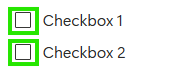
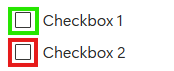
**Problem:** The element detection model does not detect checkboxes as interactive elements. This means you cannot directly target a checkbox using element detection.

**Example:**

<Columns cols={2}>
  <Card>
    <div style={{ fontWeight: 'bold', marginBottom: '12px' }}>
      ✅ Expected Behavior
    </div>

    <div style={{ marginBottom: '8px' }}>
      🖼️ <em>Checkbox is detected as an element:</em>
    </div>

    <div style={{ marginBottom: '12px' }}>
      <img src="https://mintcdn.com/askui/ZiPnNcaX92f_ZM24/02-how-to-guides/04-troubleshooting/images/CheckboxNotDetectedExpectedBehavior.png?fit=max&auto=format&n=ZiPnNcaX92f_ZM24&q=85&s=3e5d207529da86af6d45f5124fc393e9" alt="Checkbox detected" width="174" height="71" data-path="02-how-to-guides/04-troubleshooting/images/CheckboxNotDetectedExpectedBehavior.png" />
    </div>
  </Card>

  <Card>
    <div style={{ fontWeight: 'bold', marginBottom: '12px' }}>
      ❌ Actual Issue
    </div>

    <div style={{ marginBottom: '8px' }}>
      🖼️ <em>Checkbox is not detected:</em>
    </div>

    <div style={{ marginBottom: '12px' }}>
      <img src="https://mintcdn.com/askui/ZiPnNcaX92f_ZM24/02-how-to-guides/04-troubleshooting/images/CheckboxNotDetectedActualIssue.png?fit=max&auto=format&n=ZiPnNcaX92f_ZM24&q=85&s=850304d18b1472de6abf3a83ae28804b" alt="Checkbox not detected" width="174" height="71" data-path="02-how-to-guides/04-troubleshooting/images/CheckboxNotDetectedActualIssue.png" />
    </div>
  </Card>
</Columns>

### Solutions

<AccordionGroup>
  <Accordion title="Use Relative Click to an Anchor Element (Best Practice)">
    Instead of clicking the checkbox directly, use a nearby text label as an anchor and click relative to it.

    <CodeGroup>
      ```python Python theme={null}
      from askui import locators as loc
      ...
      with VisionAgent() as agent:
          agent.click(loc.RelativePosition(x=-30, y=0, anchor=loc.Text("Accept Terms")))
      ```

      ```python Typescript theme={null}
      await aui.moveMouseRelativeTo(-30, 0).text("Accept Terms").exec()
      await aui.mouseLeftClick().exec()
      ```
    </CodeGroup>

    <Tip>
      Adjust the relative offset values (`x`, `y`) based on the position of the checkbox relative to the anchor text in your application.
    </Tip>
  </Accordion>

  <Accordion title="Use Custom AI Element">
    You can teach AskUI to recognize the checkbox by creating a custom AI Element.

    **Steps:**

    1. Open AskUI Shell

    ```bash theme={null}
    askui-shell
    ```

    2. Create a new AI Element

    ```bash theme={null}
    # Capture elements from your screen
    AskUI-NewAiElement -Name "my-element-name"
    ```

    3. Use captured AI Elements in your code:

    <CodeGroup>
      ```python Python theme={null}
      from askui import locators as loc
      ...
      with VisionAgent() as agent:
          agent.click(loc.AiElement("my-element-name"))
      ```

      ```python Typescript theme={null}
       await aui.click().aiElement("my-element-name").exec()
      ```
    </CodeGroup>

    <Note>
      If you cannot use the AskUI-NewAIElement command, activate experimental commands by running `AskUI-ImportExperimentalCommands` in your terminal.
    </Note>
  </Accordion>
</AccordionGroup>