> ## Documentation Index
> Fetch the complete documentation index at: https://docs.askui.com/llms.txt
> Use this file to discover all available pages before exploring further.
# Billing and Invoices
> Change your subscription and manage invoices
Only **Workspace Owners** have access to the billing section and danger zone. Admins and Members will not see these options in their interface.
## Accessing the Billing Portal
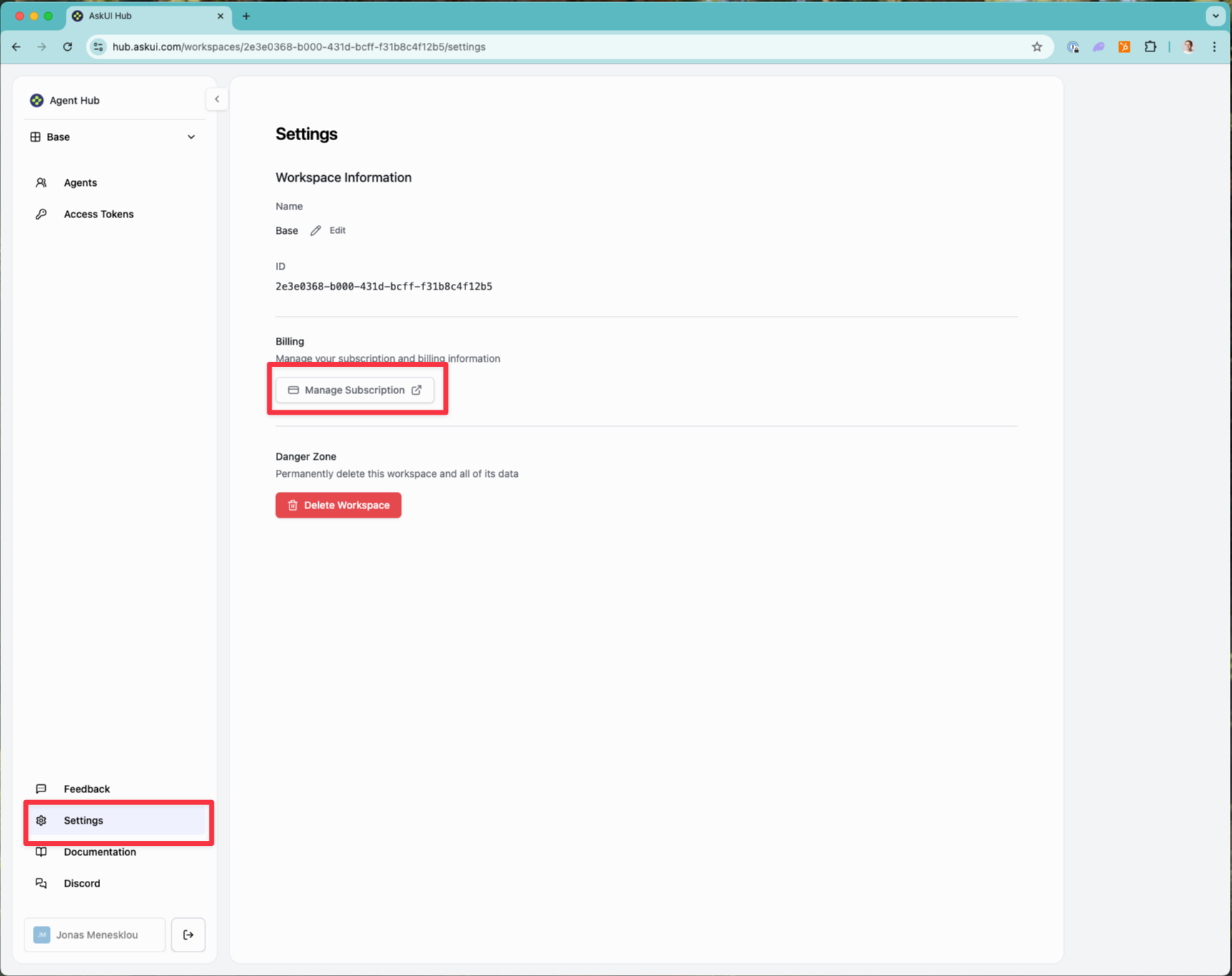
From the **Workspace** page, click **UPGRADE** or **MANAGE BILLING** in the **Billing & Usage** section. You will be redirected to the **Billing Portal**.
 ## Add a Payment Method
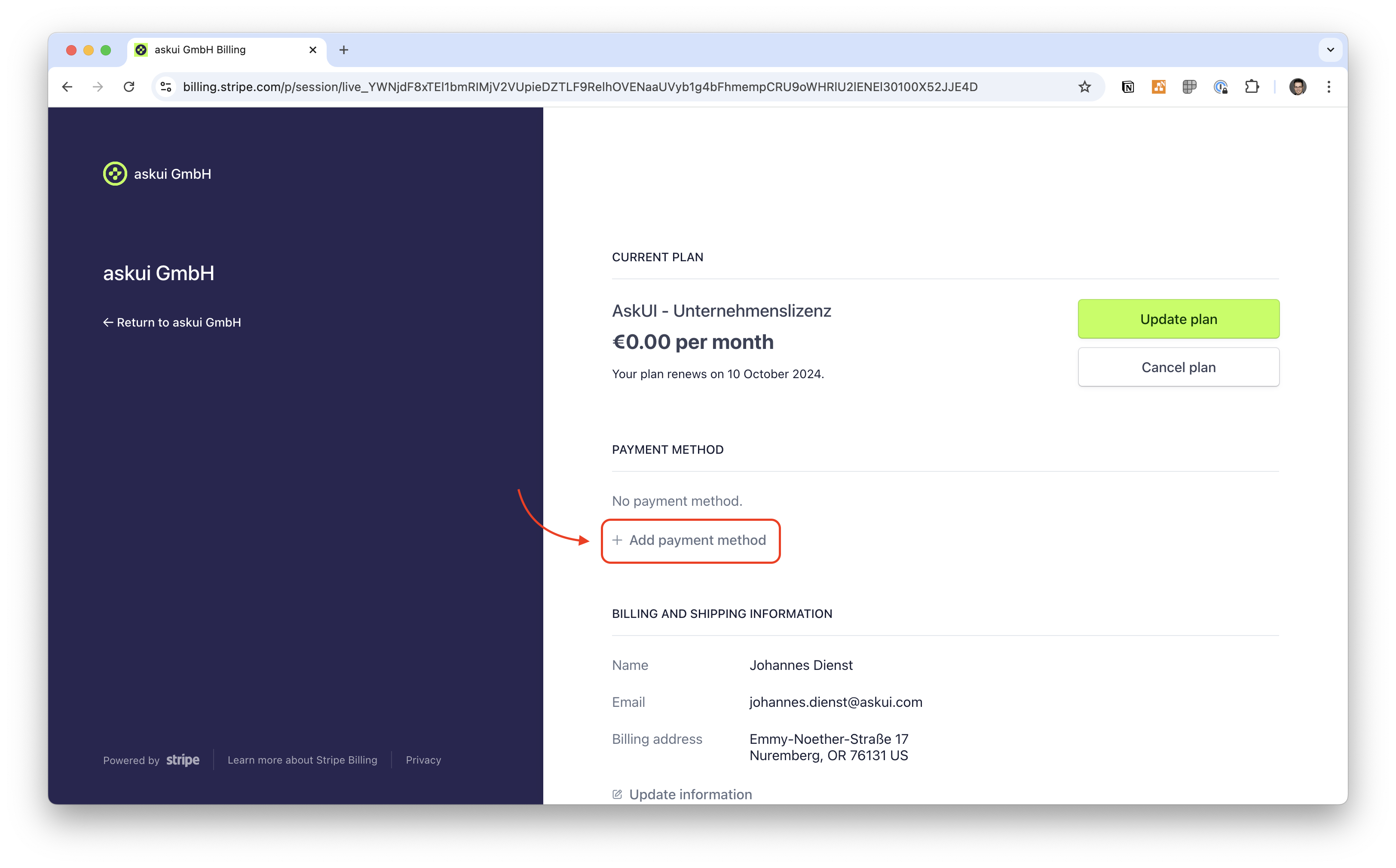
1. In the Billing Portal, go to **PAYMENT METHOD**.
2. Click **+ Add payment method**.
3. Choose **(Credit) Card** or **SEPA Debit** and enter the required details.
4. Click **Add** to save your new payment method.
Your payment provider may require additional confirmation steps.
## Add a Payment Method
1. In the Billing Portal, go to **PAYMENT METHOD**.
2. Click **+ Add payment method**.
3. Choose **(Credit) Card** or **SEPA Debit** and enter the required details.
4. Click **Add** to save your new payment method.
Your payment provider may require additional confirmation steps.
 ## Change Your Current Plan
You must have a [payment method](#add-a-payment-method) added before upgrading to a paid plan.
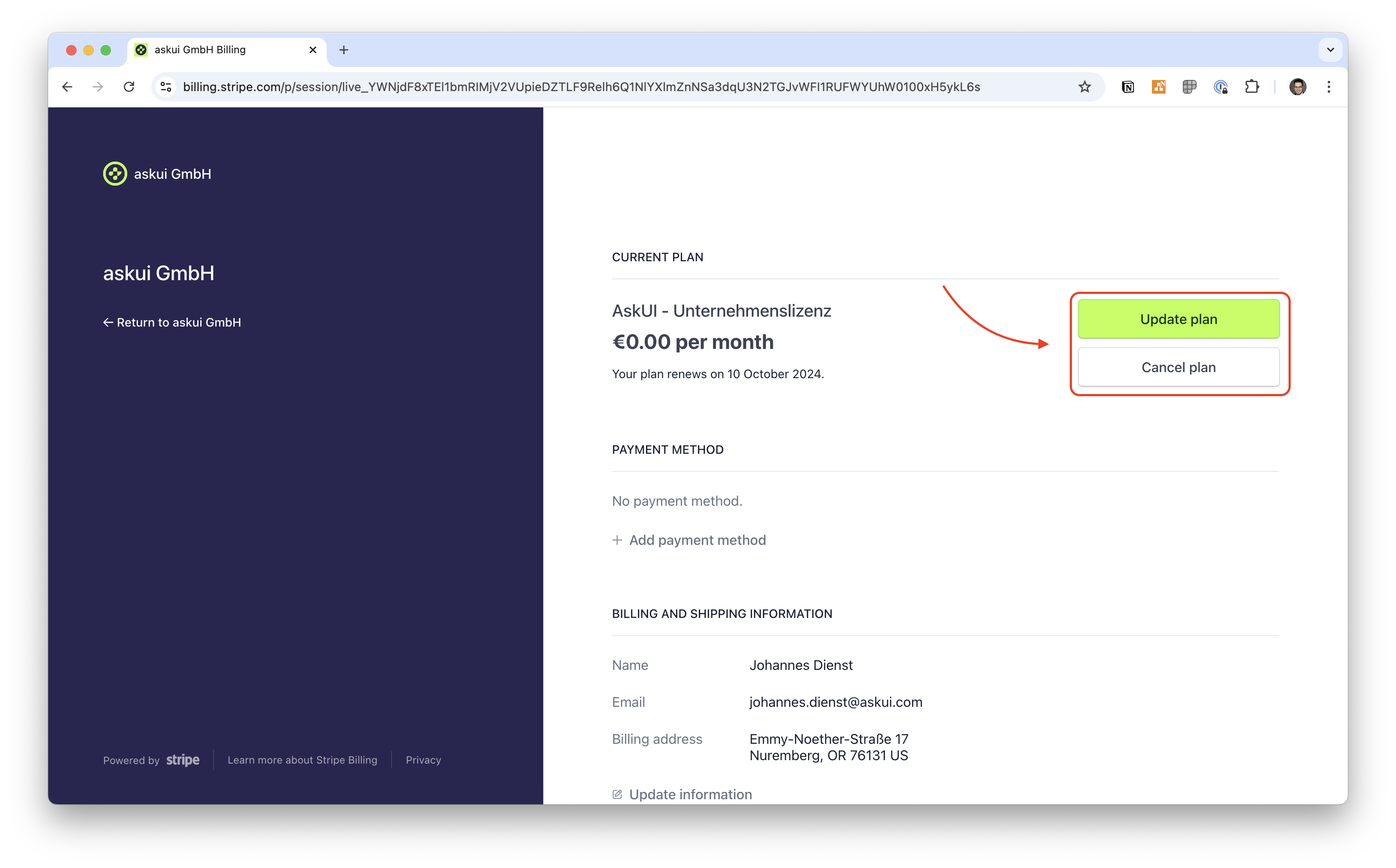
1. In the Billing Portal, navigate to **CURRENT PLAN**.
2. Click **Update plan** to switch to a paid version or **Cancel plan** to end your subscription.
## Change Your Current Plan
You must have a [payment method](#add-a-payment-method) added before upgrading to a paid plan.
1. In the Billing Portal, navigate to **CURRENT PLAN**.
2. Click **Update plan** to switch to a paid version or **Cancel plan** to end your subscription.
 ## Update Billing and Shipping Information
Billing and shipping information is used for [invoices](#view-and-download-invoices).
1. In **BILLING AND SHIPPING INFORMATION**, click **Update Information**.
2. Enter your billing and shipping details.
3. Click **Save** at the bottom of the page.
## Update Billing and Shipping Information
Billing and shipping information is used for [invoices](#view-and-download-invoices).
1. In **BILLING AND SHIPPING INFORMATION**, click **Update Information**.
2. Enter your billing and shipping details.
3. Click **Save** at the bottom of the page.
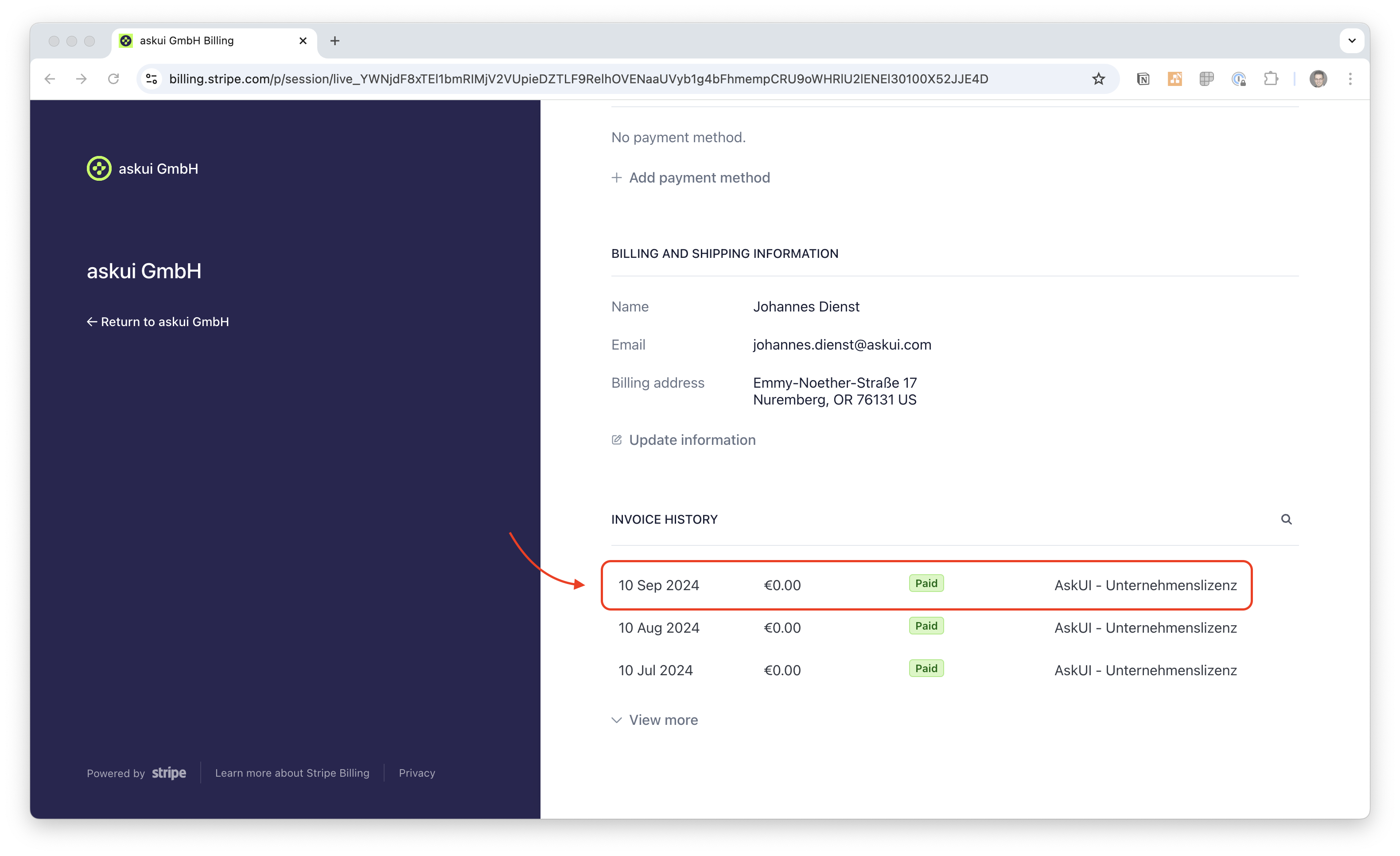
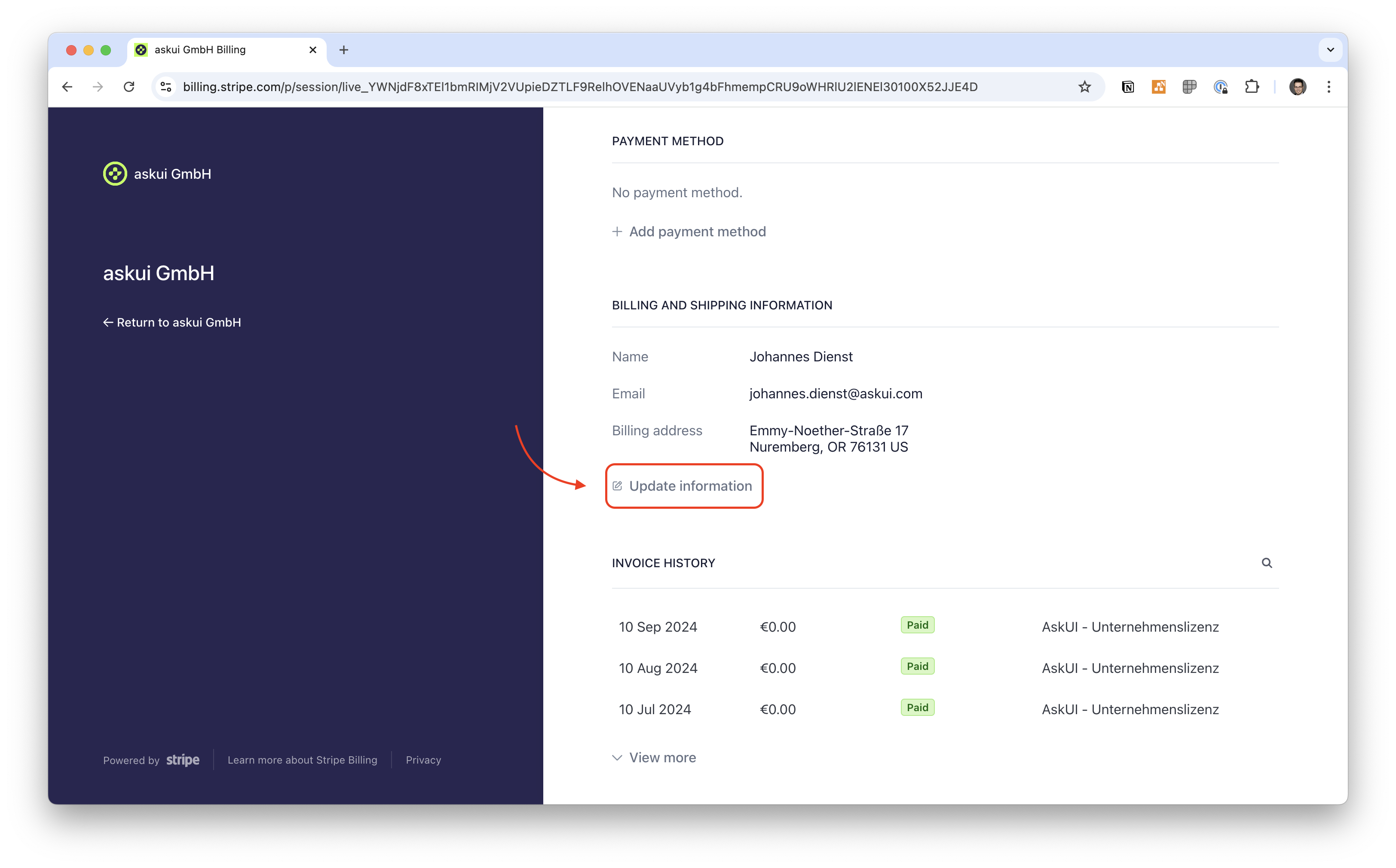 ## View and Download Invoices
1. In the **INVOICE HISTORY** section, select the invoice you want to view.
2. From the invoice page, download the receipt and/or the invoice as needed.
## View and Download Invoices
1. In the **INVOICE HISTORY** section, select the invoice you want to view.
2. From the invoice page, download the receipt and/or the invoice as needed.